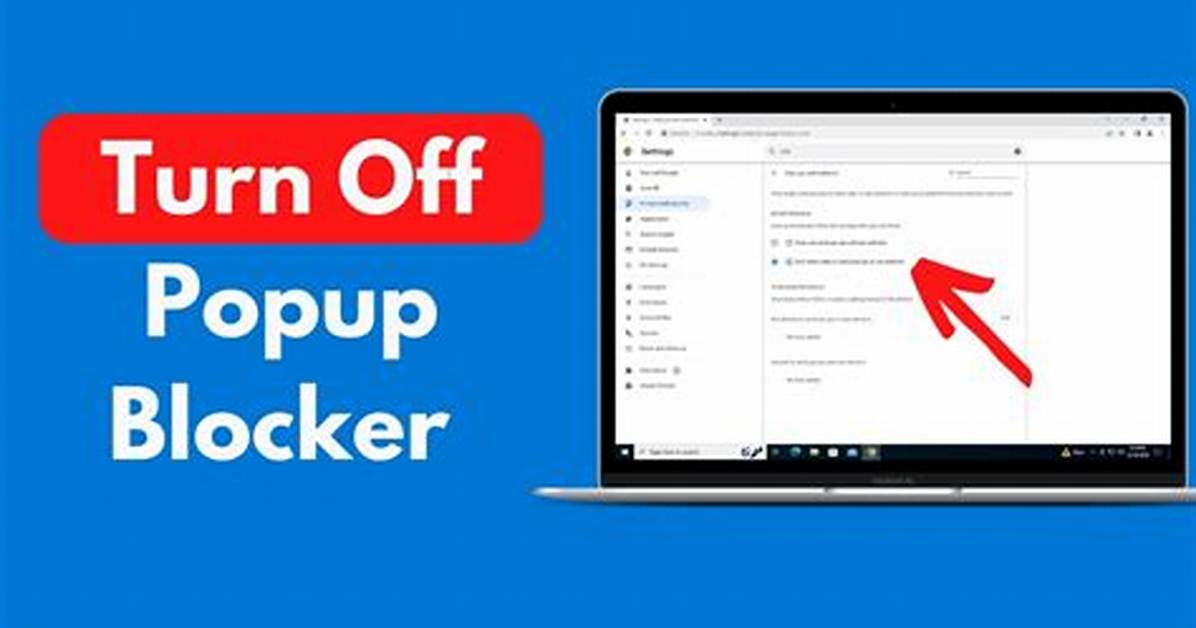
If you’re an iPhone user and tired of dealing with pop-up blockers hindering your browsing experience, you’ve come to the right place. In this article, we will guide you through the process of removing the pop-up blocker on your iPhone, ensuring uninterrupted browsing and a smoother user experience.
Key Takeaways:
- Disabling the pop-up blocker on your iPhone allows for uninterrupted browsing.
- Follow the specific steps for your preferred browser, such as Safari, Chrome, or Firefox.
- Adjust the settings in your browser app to disable the pop-up blocker.
- On Safari for Mac, you can allow specific pop-ups for certain websites.
- Remember to enable the pop-up blocker when necessary to protect against malicious content.
How to Disable Pop-up Blocker on Safari (iOS)
In order to have a seamless browsing experience on your iPhone, it may be necessary to disable the pop-up blocker in Safari. Follow the step-by-step instructions below to turn off the pop-up blocker:
- Open the “Settings” app on your iPhone.
- Scroll down and tap on “Safari.”
- In the Safari settings, toggle off the “Block Pop-ups” option.
By disabling the pop-up blocker on Safari, you can avoid missing out on important information or offers that may appear in pop-up windows. Now, you’re ready to browse the web without any interruptions.
Stay tuned for the next section where we’ll talk about disabling pop-up blockers on Chrome for iOS.
How to Disable Pop-up Blocker on Chrome (iOS)
To ensure a seamless browsing experience on your iPhone, it’s essential to disable the pop-up blocker on Chrome. Follow these simple steps to configure your settings and allow pop-ups on your device:
- Open the Chrome app on your iPhone.
- Go to a page where pop-ups are blocked.
- In the address bar, tap on “Pop-up blocked.”
- Tap the link for the pop-up you want to see.
- To always allow pop-ups for the site, select “Always show” from the options.
By following these steps, you can easily disable the pop-up blocker on Chrome and access the content you want without any interruptions.
| Benefits of Disabling Pop-up Blocker on Chrome (iOS) |
|---|
| Easier access to important pop-up messages or notifications |
| Seamless navigation on websites that utilize pop-ups for various features |
| Enhanced user experience with full functionality of web pages |
| Quick and convenient access to special offers, promotions, and important information |
Disabling the pop-up blocker on Chrome allows you to make the most out of your browsing experience and ensures that you have the flexibility to engage with different website features that may utilize pop-ups. Whether it’s receiving important notifications or taking advantage of exclusive offers, disabling the pop-up blocker puts you in control.

