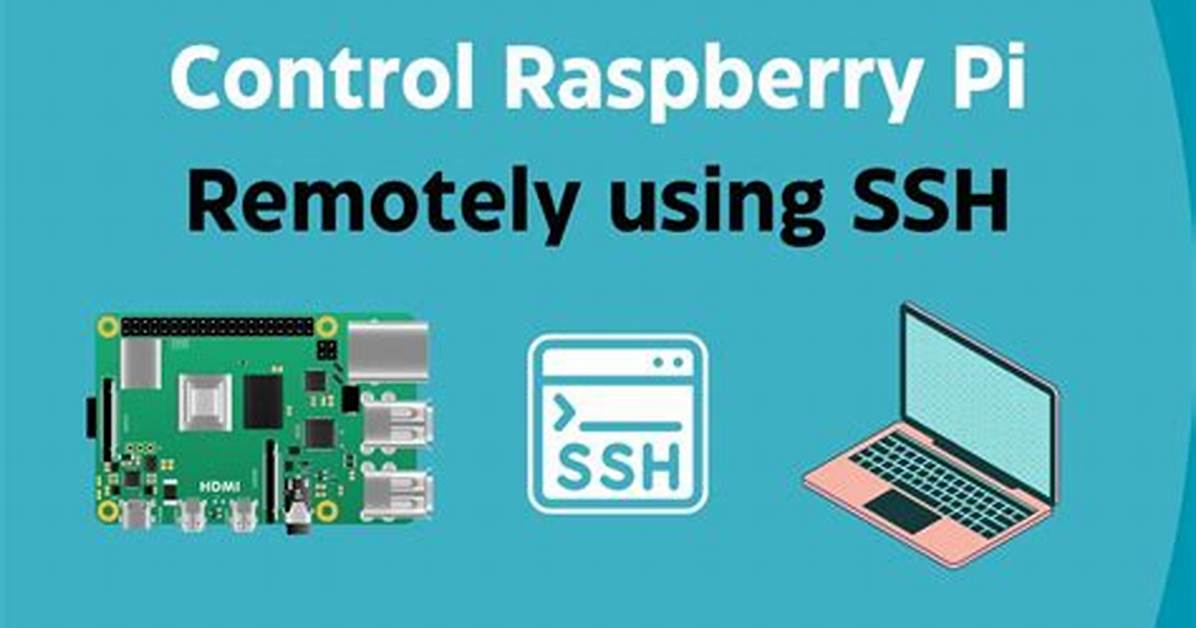
Remote SSH access is a powerful tool for managing Raspberry Pi devices from anywhere in the world. However, there are times when this connection may fail or not work as expected. If you're facing issues with remote SSH access on your Raspberry Pi, this guide is here to help you identify the problem and resolve it effectively.
Whether you're a hobbyist or a professional developer, maintaining remote access to your Raspberry Pi is essential for managing projects, running servers, or troubleshooting issues. Unfortunately, connectivity problems can arise due to various reasons, such as network configuration errors, firewall restrictions, or software misconfigurations.
In this article, we will explore the common causes of remote SSH access not working on Raspberry Pi and provide actionable solutions to resolve these issues. By the end of this guide, you'll have a better understanding of how SSH works, how to troubleshoot common problems, and how to prevent future connectivity issues.
Introduction to SSH and Raspberry Pi
SSH, or Secure Shell, is a protocol that allows users to securely access and manage remote devices over a network. For Raspberry Pi users, SSH is an indispensable tool for managing headless setups, running servers, or accessing files remotely. However, when remote SSH access fails, it can be frustrating and time-consuming to diagnose the issue.
One of the most common problems reported by Raspberry Pi users is the inability to establish a remote SSH connection. This issue can stem from several factors, including incorrect configurations, network limitations, or software conflicts. Understanding the basics of SSH and how it interacts with your Raspberry Pi is the first step toward resolving these issues.
In this section, we'll cover the fundamentals of SSH, its importance for Raspberry Pi users, and why remote access may fail. By the end of this section, you'll have a clear understanding of what SSH is and how it works in the context of Raspberry Pi.
Enabling SSH on Raspberry Pi
Before troubleshooting remote SSH access issues, it's essential to ensure that SSH is enabled on your Raspberry Pi. By default, SSH is disabled on newer versions of Raspberry Pi OS for security reasons. To enable SSH, follow these simple steps:
- Boot your Raspberry Pi and log in to the desktop environment.
- Open the terminal and type the following command:
sudo raspi-config. - Select "Interfacing Options" and navigate to "SSH".
- Choose "Enable" and reboot your Raspberry Pi.
Alternatively, if you're setting up a headless Raspberry Pi, you can enable SSH by placing an empty file named "ssh" in the boot partition of your SD card. This method is particularly useful when you don't have access to the graphical interface.
Once SSH is enabled, you can proceed to test the connection using an SSH client such as PuTTY (Windows) or Terminal (macOS/Linux).

